

If you’re running a small online business and create a lot of content, you’ve probably wondered: Is Canva AI worth it, or is it just another feature that looks impressive but doesn’t actually save time? I had the same question. I’ve been using Canva Pro for about a year now and the free version before that, but I’ll be honest…
I wasn’t using it anywhere near its full potential. So, I decided to take the time to test Canva’s AI tools in my own content workflow to see what genuinely speeds things up and what doesn’t.
I was creating content, repurposing it, cleaning up images, generating quick visuals, and trying to speed up anything that usually eats time.
Here’s what actually surprised me in a good way, what took a second, okay maybe a third attempt to get it right… Also, what I had a learning curve on, and I wasn’t excited to figure out, while staring at a deadline.

Want a quick overview of all the tools I’ve tested? Check out my Best AI Tools for Small Business Owners guide.
Affiliate Disclosure: This post contains affiliate links. If you purchase through these links, I may earn a commission at no extra cost to you. You can find the full disclosure here.
- What this post covers (and what it doesn’t)
- The Short Answer Before We Break It Down
- What Is Canva AI & What Does That Mean?
- What I tested in Canva AI
- AI limits: Canva isn’t super clear about caps
- Is Canva Pro Worth It If You’re Using the AI Features?
- Canva Pricing: Free vs Pro
- Final Verdict: Is Canva AI Worth It for Small Business Owners?
- Frequently Asked Questions About Canva AI
- Save Time Without Guessing the Tools
What this post covers (and what it doesn’t)
Canva has a million features that would take a decade to try out and see how they all work. This isn’t everything Canva can do.
This is specifically my testing of Canva’s AI tools and the question most busy entrepreneurs actually care about.
Does this save time… and is it worth it?
The Short Answer Before We Break It Down
If you’re wondering: Is Canva AI worth it? The answer isn’t a simple yes or no.
Some features genuinely saved me time.
Some looked impressive but needed more work than I expected.
And one area? I tested it, but it requires consistent use before I’d confidently recommend it as a time-saver, especially since Canva is still actively refining this part of the platform.
Let me show you exactly what happened when I tested each one.
What Is Canva AI & What Does That Mean?
Before I break down my testing, it helps to understand what “Canva AI” actually refers to.
It isn’t one single tool. Canva AI is a collection of built-in features designed to assist with writing, image generation, layout suggestions, content batching, and editing, all inside the Canva platform.
You can explore Canva’s official overview of how AI works inside the platform, including writing, design suggestions, and creative automation tools on their official Canva AI assistant page: https://www.canva.com/ai-assistant/
That convenience is a big part of the appeal, but convenience alone doesn’t automatically mean it saves time, which is exactly why I tested it the way I did.
What I tested in Canva AI
1) Magic Media (AI Image Generator)
I started with the AI image generator because I wanted to know: can this replace stock photos or background hunting when I’m making content?
Photorealistic test
The prompt I used:
“Modern home office of a female online entrepreneur working on AI tools, natural lighting, and realistic photography.”
The result

When I tested Magic Media, I was honestly surprised. Most of the outputs were usable. Honestly, they looked good and didn’t scream “fake stock photo.” I was very impressed.
BUT… a couple had those weird AI glitches (missing body parts / odd lamp details). Not super noticeable at first glance, but if you stare at it long enough, you’ll find it.
The good part: when I regenerated it, it got better. Would I post it? Yes. I’d just do a quick overall check before I publish it to make sure there isn’t a third arm.
Style tests (Watercolor, Retrowave, 3D)
These style options give you quick creative variety without needing separate design tools or advanced illustration skills.


Watercolor style: A softer, illustrated look after a second generation. This would work well for lifestyle brands, Pinterest graphics, or anything that needs a more artistic feel.
Retrowave style: Bold neon lighting and a strong futuristic vibe. This one stands out immediately and would be great for AI, tech, or trend-focused content where you want attention.
3D render style: Polished and surprisingly clean. The lighting and depth looked realistic enough to use for modern tech, marketing, or business visuals without heavy editing.
Watercolor isn’t my personal style, but the results improved after regenerating. The 3D render felt the most “ready to use,” and the retrowave? That one really surprised me. It had personality.
Brand-specific prompt test
Prompt I used:
“Pinterest graphic background in soft purple tones for an AI marketing brand, minimal, clean, and write on it Marketing Made Easy. Three Steps to Improve Your Workflow.”

Then I pushed it harder, asking it to add specific text and a marketing image.
Here’s what happened, and this is important.
- It nailed the colors, and it matched my branding vibe really well.
- It didn’t do everything I asked, though. It didn’t add the image like I wanted.
- Some spelling and wording weren’t right.
- Canva basically admits this is still being improved, so I can see it getting better over time.

My take:
Magic Media is great for backgrounds and quick visuals. If you need an exact layout + perfect text, you’ll still be tweaking it, but once they perfect it more, I believe it will be very helpful in your business.
2) Magic Design
When I tested Magic Design with one of my blog titles, Pinterest results came out noticeably stronger than Instagram, which surprised me.
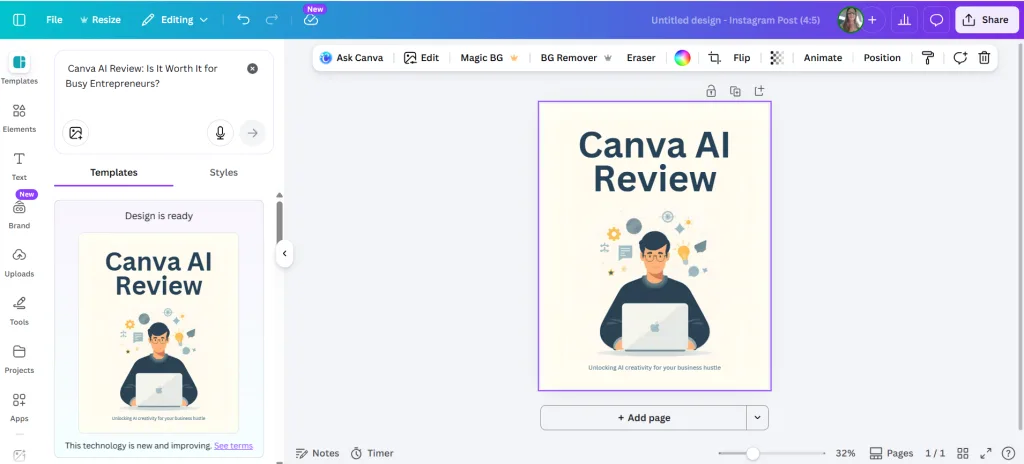

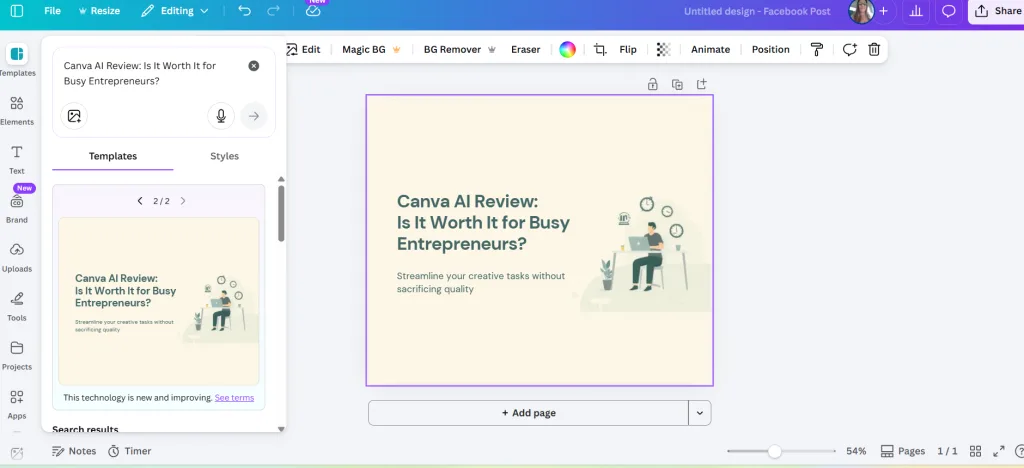
I tested Magic Design by giving it a blog title and letting Canva generate social designs. When I did it for Instagram, it looked a little generic, not bad, just not “wow,” but considering I literally only gave it a title, it did better than I expected.
When I ran it again for Pinterest, it came out way stronger. I was really impressed with the result it came up with.
Facebook wasn’t so bad for a first try. I’m sure if I asked it to refine it, then it would come out better.
And this part matters for time:
It took basically no time to generate. The only time you spend is if you keep regenerating to get a better style.
My take:
For a busy business owner, Magic Design is a strong starting point, especially for Pinterest. It’s not perfect, but it gets you out of a blank canvas fast.
3) Magic Write
The rewrite and shorten tools were really helpful and fast, but the subject line suggestions felt too safe and generic to use without editing or asking it to try again.
Social caption test
Prompt I Used:
“Write an Instagram caption about using Canva AI to save time as a small business owner.”
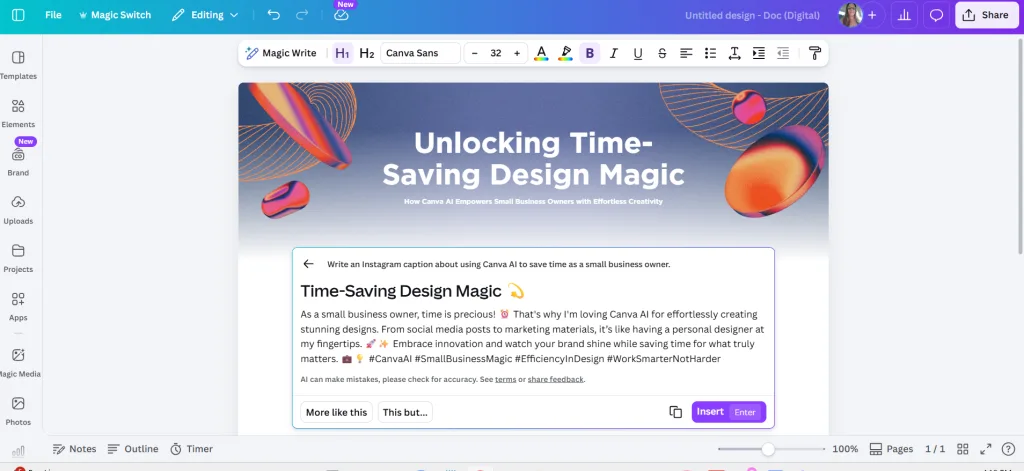
The hook was decent (“every second counts”), CTA was included, and it wasn’t spammy, but I’d still edit it to sound like me, which is normal.
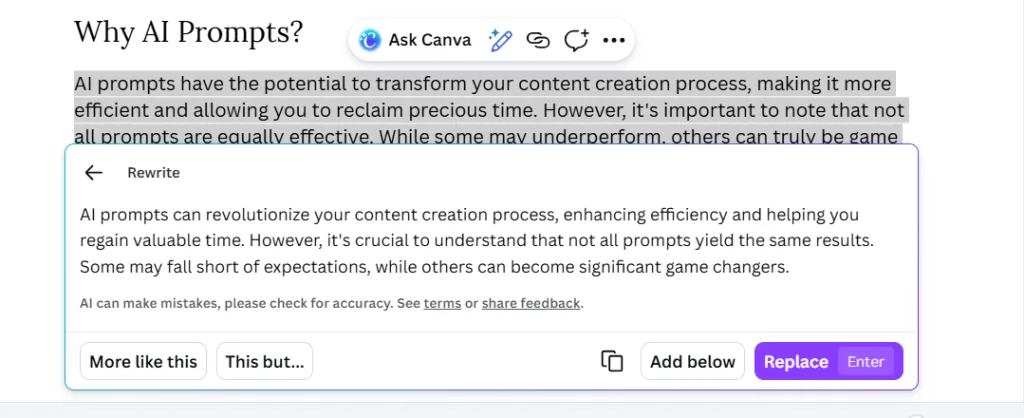
Rewrite / Shorten / More formal
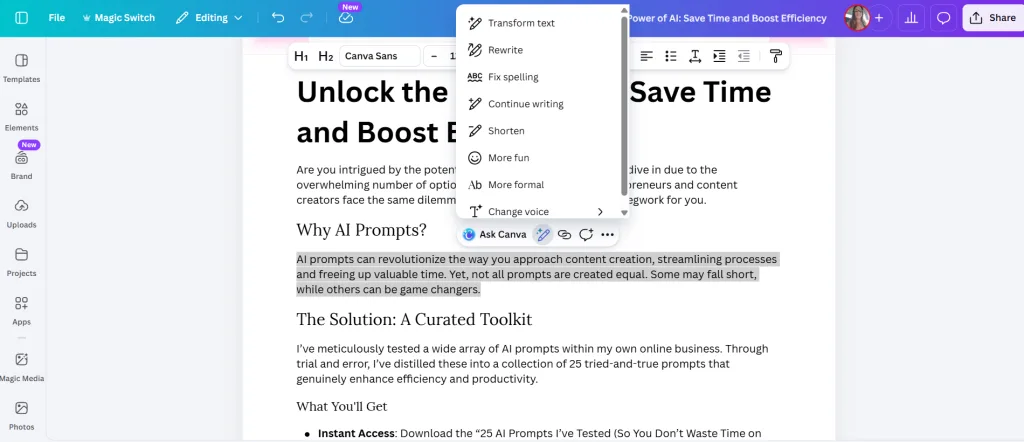
Rewrite in Canva Magic Before & After
Shorten in Canva Magic Before & After
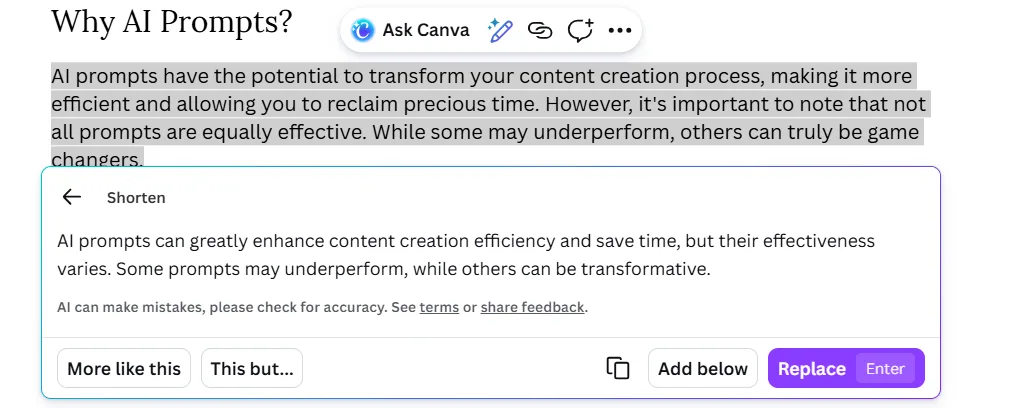
This part was fascinating because the changes happened instantly, and the tone adjustments were obvious right away.
I pasted one of my sales paragraphs and tested the rewrite options.
- Rewrite: changed it fast and made it sound different
- Shorten: It was fast and thorough
- More formal: instantly made it sound more formal
This was one of those “okay, that’s really helpful” moments because it’s instant.
Subject lines (this was the weak spot)
First Try – Very Generic

Second Try – A little Better
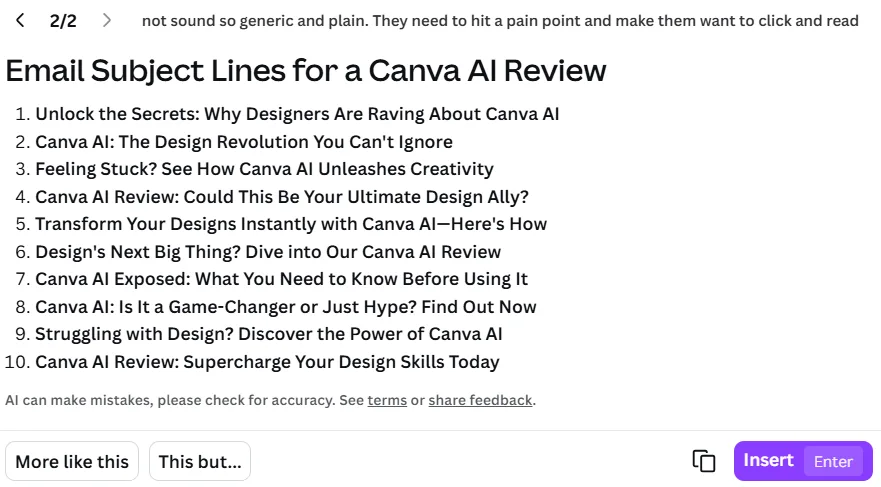
I asked Canva Magic to generate 10 subject lines for a Canva AI review. They were polished, but safe outcomes like “corporate blog safe.”
They weren’t spammy, just a little boring. There was nothing there that created curiosity, and nothing that hit a real pain point. I tried pushing it to be stronger, and it improved a little, but it still needed work.
My take: Magic Write is useful for rewriting and shortening. I wouldn’t rely on it for subject lines without doing some editing. Hopefully, they will perfect this over time because it could be very helpful.
4) Background Remover + Magic Edit
This is where it felt like Canva honestly earned its spot in my workflow.
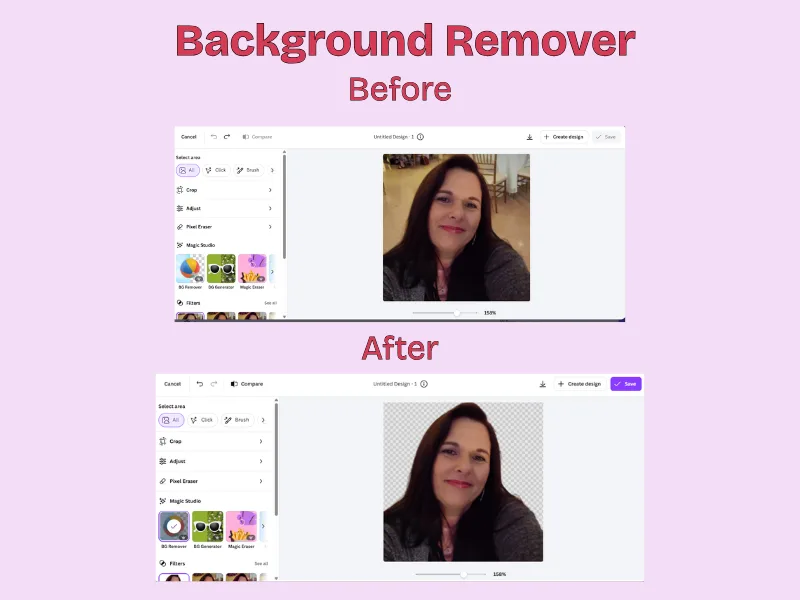
Background remover worked very nicely. There were no messy edges and no manual corrections. This was quick, clean, and easy to use.
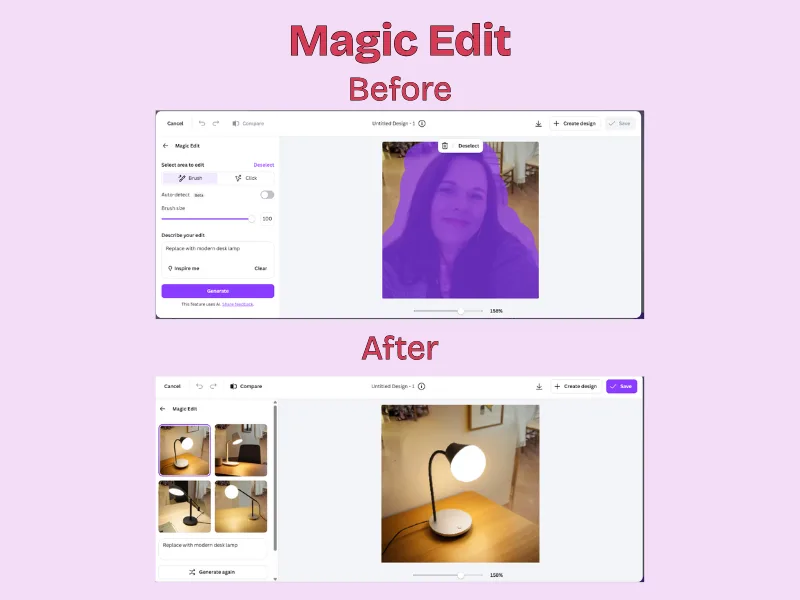
Magic Edit is where it got fun… I brushed an area and told it to replace it with a modern desk lamp. It didn’t just paste a lamp. It actually tried to make it fit in the scene, so it looked like it belonged there. This really impressed me.
My take:
This is one of the strongest “real business” features Canva AI has. It’s fast and makes basic edits doable without extra tools.
5) Magic Resize
This one absolutely saved time, even though I needed about a minute to fix minor spacing adjustments on wording after resizing. No big deal… It only took a few seconds to do.


I resized one finished pin to:
- Instagram post
- Facebook post
Nothing broke, and everything stayed in the design. The text moved slightly and looked a little weird, but it was easy to adjust. The resizing itself took seconds, and fixing the small spacing took a minute.
This is great for repurposing your content to accomodate for different platforms.
6) Brand Kit
It’s not flashy, but it quietly keeps everything consistent and saves time when you’re creating content quickly.

The Brand Kit in Canva helps when you need to create something fast, and you don’t want to hunt for colors and fonts.
I don’t rely on it every time since I already know my brand well, but when I need to move quickly, it makes staying consistent effortless
7) Video tools
Even though it wasn’t instantly intuitive for me, the built-in video tools mean you can experiment with captions, simple edits, and short-form content without needing separate video software.
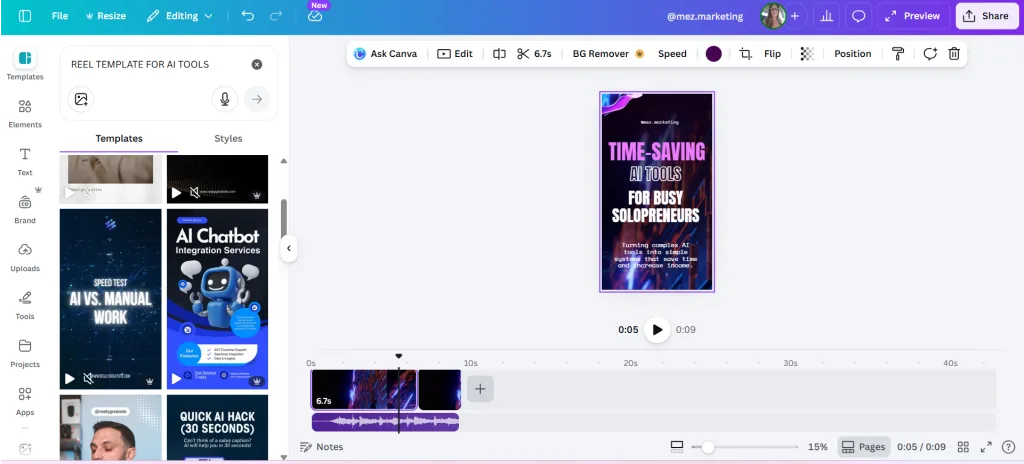
Here’s the honest truth:
I tested Canva’s video features as part of this review, and while the tools are clearly powerful, the workflow felt less intuitive for how I currently create content.
Canva even notes that this area is still being refined and results may not always be perfect, so it’s a feature that would require more dedicated use to fully evaluate.
8) Bulk Create
This one was confusing at first, but once I understood how it worked, it became one of the biggest time-savers in the entire test.
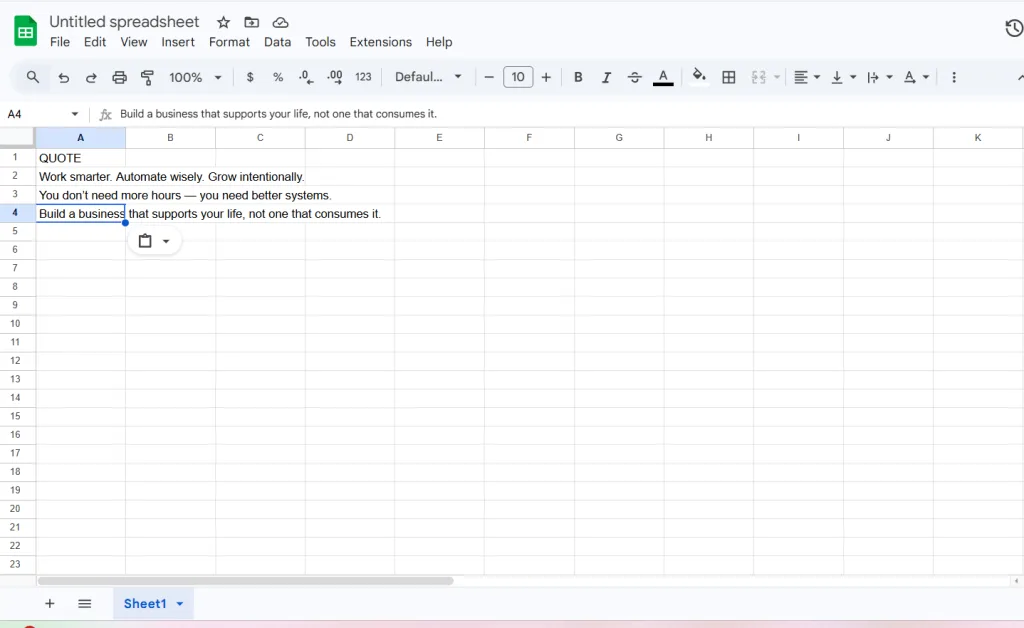

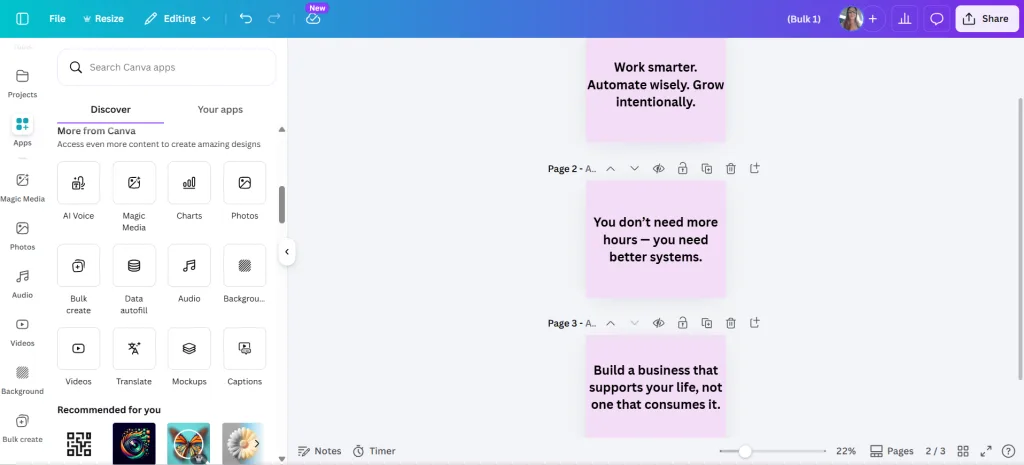
I created multiple quote posts at once, and it took around 3–5 minutes once I knew what I was doing. Yes, you still want to style them to look visually nice, but it beats doing each one manually.
This is absolutely a “hot” feature for your audience if they:
- post consistently
- create lots of tips/quotes
- want to batch content quickly
9) Export Options: Simple and Practical
Once your design is finished, Canva makes the final step easy for exporting your content.
Share Design panel
In this first image, you can:
- Download directly
- Copy a public link
- Post to Instagram
- Create a template
- Share access with a team member

For busy business owners, this removes extra steps. You design once, then distribute it however you need without jumping between platforms.
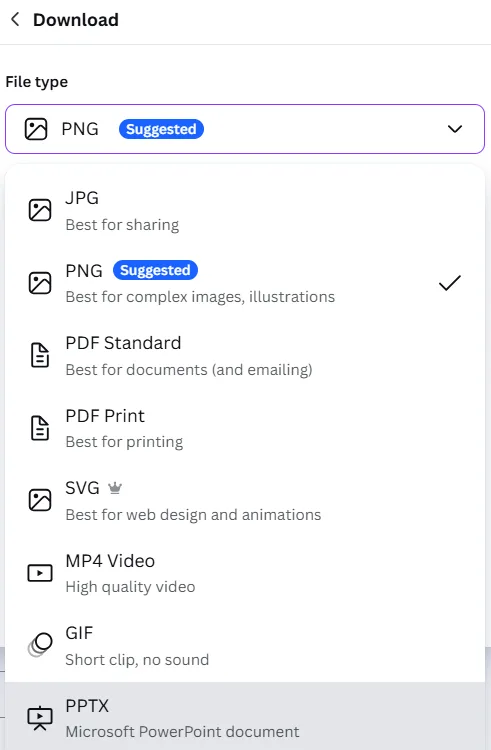
Download panel
In the second image, you can choose from multiple file types like:
- PNG (best for sharp social graphics)
- JPG (smaller file size for quick sharing)
- PDF Standard or Print (great for lead magnets or print materials)
- MP4 (for animated posts or short videos)
- SVG (for scalable web graphics in Pro)
This helps because you’re not creating content for just one place. You might need a PNG for Pinterest, a JPG for email, or a PDF for a free guide, and Canva lets you switch formats in seconds without using another tool.
It’s straightforward, and that simplicity saves time.
AI limits: Canva isn’t super clear about caps
Canva mentions that Pro users get higher AI usage limits than free users, but exact caps aren’t always clearly displayed.
If you plan to rely heavily on Magic Media, Magic Write, or Bulk Create, it’s worth testing how often you’ll realistically use those features in a week. Hitting limits mid-project can slow you down if AI generation is built into your workflow.

This is worth mentioning because if you are planning to rely heavily on AI generation, you should test limits before building your workflow around it.
Before upgrading solely for AI, I’d recommend:
- Testing your typical weekly usage
- Paying attention to regeneration limits (especially for images)
- Making sure the AI features you rely on are available in your plan
AI tools are helpful, but only if you can use them consistently without interruption.
Is Canva Pro Worth It If You’re Using the AI Features?
I’ve been paying for Canva Pro for about a year now, and after testing all its features properly, here’s the honest breakdown.
If you’re on the free plan, you can test some AI features, but the real time-savers I mentioned, Magic Resize, Bulk Create, Brand Kit, and higher AI limits, live inside Pro.
So if you’re casually designing once in a while, free is fine, but if you’re creating content every week, repurposing posts across platforms, and batching graphics? That’s where Pro makes sense.
Not because it’s flashy, but because it removes repetitive work.
Canva Pricing: Free vs Pro
Here’s what you need to know. At the time of writing this post, Canva offers a free plan and a Pro plan. You can always check their most current pricing directly on Canva’s official pricing page here: https://www.canva.com/pricing/
- Free: $0/month
Includes basic design tools and limited AI usage, which is enough for occasional projects or testing the platform. - Pro: Around $15/month
Unlocks Magic Resize, Bulk Create, Brand Kit, Background Remover, higher AI limits, and unlocks workflow-based tools that matter more when you’re creating content consistently.
If you’re designing once in a while, the free version may be completely fine.
If you’re publishing weekly, repurposing across platforms, or batching content in advance, that’s when the upgrade becomes a practical time decision, not just a feature decision.
There are also Business and Enterprise plans. They are geared more toward teams and larger organizations.
Final Verdict: Is Canva AI Worth It for Small Business Owners?
After testing everything inside my real workflow, here’s the honest answer. Yes, Canva AI is worth it if your goal is to reduce repetitive work and speed up content creation.
No, it’s not worth it if you expect it to replace strategy, creativity, or strong marketing copy.
The features that really saved me time were:
• Background Remover
• Magic Resize
• Bulk Create
• Magic Edit for quick visual changes
The features that still need work, but could be good once perfected in Canva:
• Subject line generation
• Some detailed layout prompts
• Video (unless you’re willing to invest learning time)
So when someone asks me, “Is Canva AI worth it?” My answer is this. It’s worth it when you use it like a toolkit, not like a magic button.
Frequently Asked Questions About Canva AI
Is Canva AI free?
Canva’s free plan includes limited AI features, but many of the stronger time-saving tools, such as Magic Resize, Bulk Create, and Brand Kit, require Canva Pro.
Is Canva AI worth it for beginners?
If you’re just starting out, Canva AI can be helpful for simple edits and generating ideas. However, it still requires manual adjustments and basic design understanding.
Does Canva AI replace other AI tools?
No. Canva AI works best as a design assistant and workflow accelerator. It doesn’t replace strategic tools like dedicated copywriting AI platforms.
Is Canva Pro required to use AI features?
Some AI tools are available on the free plan, but higher usage limits and key time-saving features are included with Canva Pro.
Save Time Without Guessing the Tools
If you’re building online, creating content weekly, and you’re tired of wasting time on tools that don’t help, that’s exactly why I test this stuff.
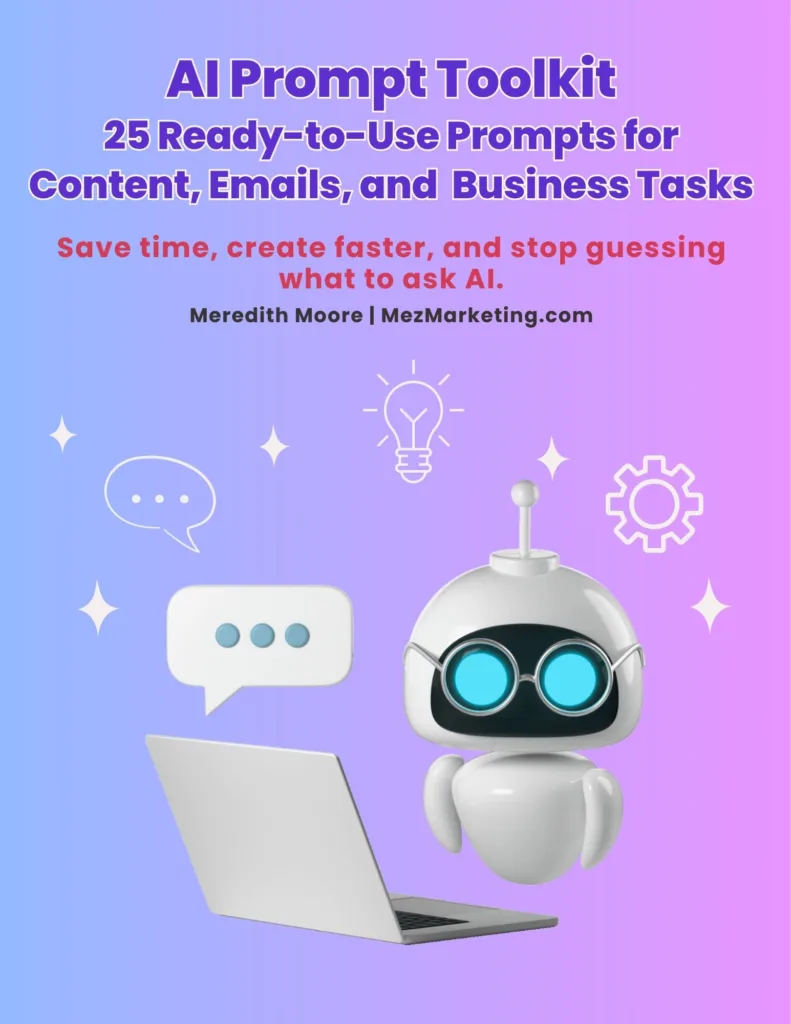
If you want my tested prompts + workflows that save time and help you grow faster, grab my free toolkit, and I’ll keep sending the practical stuff weekly straight to your inbox.
What’s one tool you’ve tried that promised to save time… but didn’t? I think we’ve all had at least one of those. I’d love to hear your experience and what happened. Sometimes those stories help other business owners avoid the same frustration. 😊

Related Articles >>
ChatGPT Review 2026: Is It Worth It for Small Business Owners?
7 AI Content Repurposing Tools That Save 10 Hours a Week
AI Image Generators That Save Small Businesses Time
FlexClip Review: Does It Really Save Time for Beginners?
Other Recommended AI Tools
Predis.ai – AI-powered social media content creation & scheduler. Try it out here
InVideo AI – Text-to-video with AI voiceovers.Get it n ow
Simplified – All-in-one content creation suite. Let Simplified do it
FlexClip – AI video maker + editor for quick, professional videos. Try it out
If this review saved you time, share it with another entrepreneur drowning in content creation!


Hi Meredith – This was incredibly helpful. You honestly answered a lot of the questions I have been trying to sort out in my head about Canva, especially the difference between what the free plan can realistically do and when the paid version actually makes sense. I have been poking around inside it, but your real testing cleared up far more in one read than I have figured out on my own.
Thank you for putting in the time to actually test everything and explain it in plain language. You probably just saved me hours of wandering around menus and second guessing whether I was using the right tools. I really appreciate you doing the research and sharing it with the rest of us who are trying to build while learning at the same time. Have a great and productive week!
Hey Ernie!
One of the biggest reasons I started testing these tools the way I do is because I remember exactly what it felt like to be clicking around inside a platform thinking, “Okay… but what am I actually supposed to use here?” Canva can feel like a maze at first because there are so many features. I certainly didn’t know where to start when I first started using Camva…
I’m really glad the breakdown helped clear things up and saved you some time. If I can help someone skip a few hours of wandering through menus and trial-and-error, then doing this test was worth it.
Also, you’re definitely not alone in trying to build while learning at the same time. Most of us are figuring things out as we go. We’re just sharing notes along the way.
Thanks for taking the time to leave such a thoughtful comment. I really appreciate it, and I hope you have an awesome and productive week too! 😊