

Need short business videos but don’t want to record, edit, or pay for another tool too soon? In this InVideo AI review for beginners, I tested the free plan to see what it can actually do, and where it starts to feel limited.
Affiliate Disclosure: This post contains affiliate links, which means I may earn a commission at no extra cost to you if you purchase through my links. I only recommend tools I’ve personally tested and believe will add value to your business. You can find the full disclosure here.
- Introduction
- Quick Answer: Is InVideo AI Good for Beginners?
- What Is InVideo AI?
- What InVideo AI Is Best For
- What I Tested in InVideo AI
- What Else Can InVideo Do?
- Test 1: InVideo AI Text-to-Video From a Prompt
- Test 2: InVideo AI Captions and Voiceover
- Test 3: Editing With InVideo Magic Box
- Test 4: InVideo AI Free Plan and Export Limits
- Test 5: InVideo AI Lead Magnet Promo Video
- Is the InVideo AI Free Plan Enough?
- Is InVideo AI Worth It for Beginners?
- Is InVideo AI Legit?
- How InVideo Compares to Other Tools
- Final Verdict: Would I Recommend InVideo AI?
- FAQ: InVideo AI Review for Beginners
- Tools You May Want to Explore Along With InVideo AI
- Want Help Knowing What to Ask AI?
- Final Note
Updated post: August 2026
Since I originally tested InVideo AI, the platform has expanded its AI agent, workflow, and generative-model features. My hands-on results below are still based on my original beginner test, and I’ve updated the current platform and free-plan information where needed.
Introduction
I haven’t created a video in a while, but I’ve been thinking about making some short videos for my business again. The thing is, I didn’t want to spend hours recording, editing, adding captions, finding music, and trying to make everything look professional from scratch.
I remember exactly what that was like when I was posting on TikTok regularly. I shared more of those lessons in my post about what worked and what I would do differently with TikTok using AI.
So that’s why I decided to test InVideo AI from a beginner’s perspective, using the kind of free-plan workflow most small business owners, bloggers, and creators would probably try first.
This InVideo AI review for beginners is based on what actually happened when I created, edited, and exported short business videos from simple prompts.
For this review, I focused on the basics, which is creating a video from a prompt, checking the captions and voiceover, making simple edits, testing the free plan, and creating a lead magnet promo video.
This is not a full advanced-feature review. It is a real test of whether InVideo AI can help beginners create simple business videos faster without needing video editing skills.
Quick Answer: Is InVideo AI Good for Beginners?
The quick answer in this InVideo AI review for beginners is yes, it can help you create a short marketing video draft from a simple prompt, but I would not treat the first version as ready to publish.
It gave me a starting video with stock footage, captions, voiceover, music, and a short-form layout without recording anything myself. However, the draft still needed cleanup. Some clips felt generic, the captions needed to be easier to read, and the ending needed a stronger CTA.
The free plan is still useful for testing InVideo AI, but it now works on a limited credit system that resets weekly. Paid plans provide more credits and watermark-free exports, so the free plan is better for exploring the workflow than relying on it for regular polished business videos.
What Is InVideo AI?
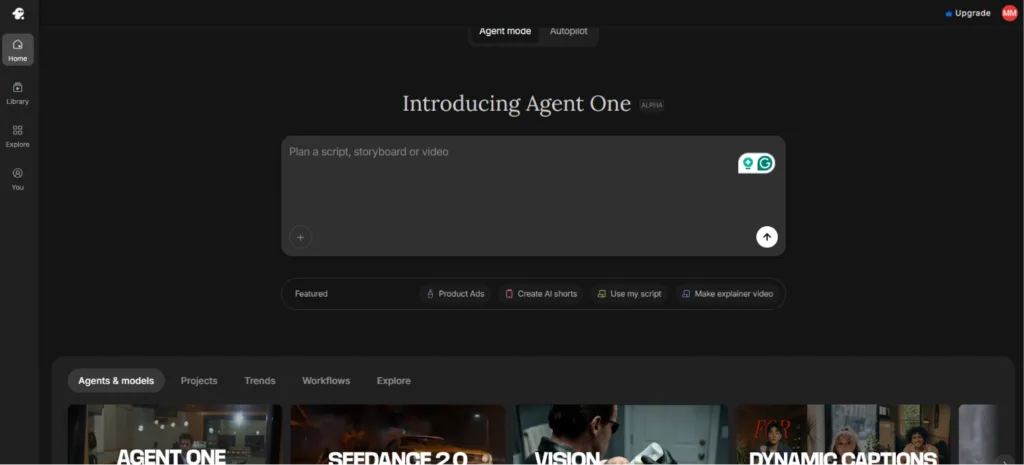
InVideo AI is an AI video creation platform that can turn a prompt into a video and help create the script, visuals, captions, voiceover, music, and overall video flow.
It now also includes Autopilot, conversational AI agents, specialized workflows, and access to generative image, video, audio, and music models.
That sounds helpful, but the real question is not whether it can make a video. The real question is whether the video is actually usable for business content, and that’s what I tested.
What InVideo AI Is Best For
InVideo AI makes the most sense if you need a fast video draft and don’t want to start from a blank editor.
It is best for:
- Small business owners
- Bloggers
- Digital creators
- Affiliate marketers
- Beginners who don’t want to record themselves
- People who need short social videos
- People who want captions, music, clips, and voiceover created for them
Use it when you need a blog promo, lead magnet promo, Reel, TikTok, YouTube Short, or quick marketing video idea.
It’s not ideal if you expect a perfect branded video on the first try.
What I Tested in InVideo AI
For this InVideo AI review for beginners, I tested the parts I think most new users would care about first.
Things like:
- Text-to-video from a prompt
- Voiceover and captions
- Magic Box editing
- Stock footage and iStock check
- Free plan and export limits
- Lead magnet promo video
I did not test every advanced feature because I wanted this review to stay focused on the basics. I wanted to know if InVideo can help me create a simple marketing video faster.
What Else Can InVideo Do?
Even though I kept my original test focused on the beginner workflow, InVideo AI now has quite a few more creation options.
Current features include:
- Autopilot for creating a video from a prompt
- Conversational AI agents for more involved video creation
- Specialized workflows such as Script to Video and Explainer videos
- UGC and product-ad creation
- AI avatars and AI twins
- Voice cloning
- Generative image and video models
- Access to multiple outside AI models through Agents & Models
InVideo says its paid plans currently include access to more than 200 image, video, audio, and music models. Those advanced features were not part of my original beginner test, so I’m keeping this review focused on the simpler workflow I actually used.
Test 1: InVideo AI Text-to-Video From a Prompt
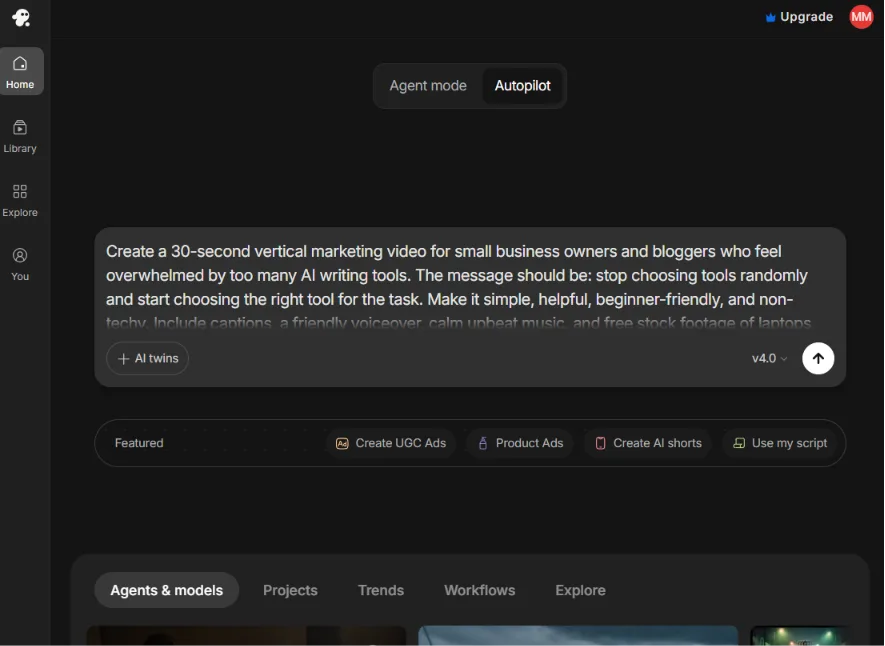
For the first test, I asked InVideo to create a 30-second vertical marketing video for small business owners and bloggers who feel overwhelmed by too many AI writing tools.
Prompt I Used
Create a 30-second vertical marketing video for small business owners and bloggers who feel overwhelmed by too many AI writing tools. The message should be: stop choosing tools randomly and start choosing the right tool for the task. Make it simple, helpful, beginner-friendly, and non-techy. Include captions, calm upbeat music, stock footage of laptops/content planning, and a CTA to read the full blog post.
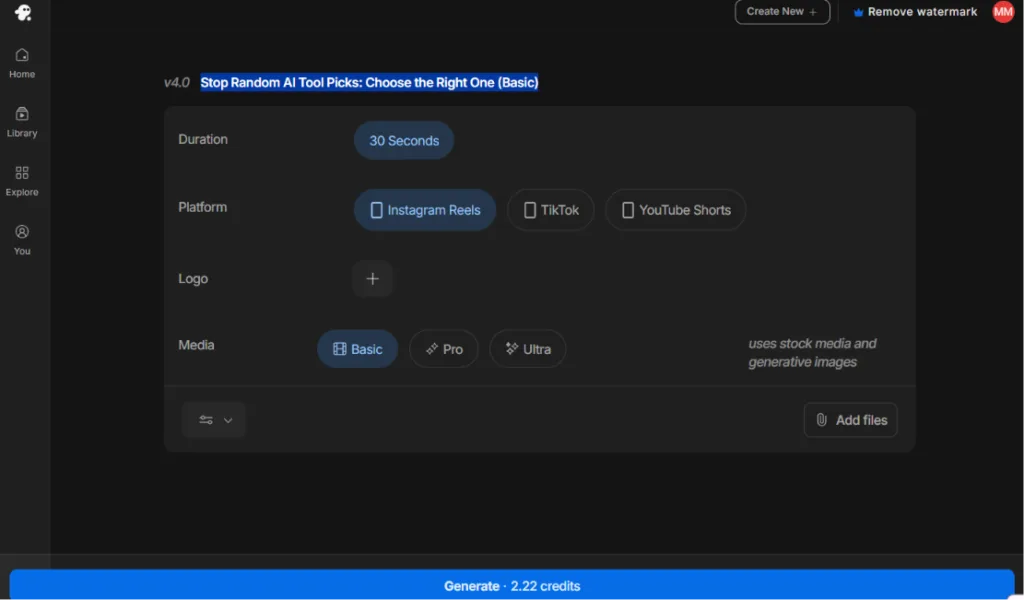
I wanted the message to be simple. Something like, “Stop choosing tools randomly and choose the right tool for the task”. That message came from my post on choosing the best AI for writing when you’re not sure which tool fits the job. InVideo created a full short video from that prompt.
Current note: InVideo’s Autopilot now offers Basic, Pro, and Ultra generation options. Basic relies on stock media, while Pro and Ultra use generative video models and consume more credits. I did not test those newer options as part of this original review.
Video Example: My First InVideo AI Text-to-Video Test.
That part worked well. I didn’t have to record myself, write the full script, find clips, add captions, or build the video from scratch. However, it was not ready to post.
The video matched the general topic, but some clips felt generic, the captions were hard to read, and the CTA needed work.
My score: 3 out of 5
It was useful as a first draft, not a finished video.
What Worked
- It created a full video from one prompt.
- It understood the general topic.
- It added captions and voiceover.
- It gave me a starting point without recording myself.
What Needed Fixing
- Some clips felt generic.
- Captions were small and blurry.
- The CTA needed to be stronger.
- It didn’t feel branded enough yet.
Test 2: InVideo AI Captions and Voiceover
The first video included captions and a voiceover automatically. That was helpful because captions and voiceover are usually two things that slow beginners down.
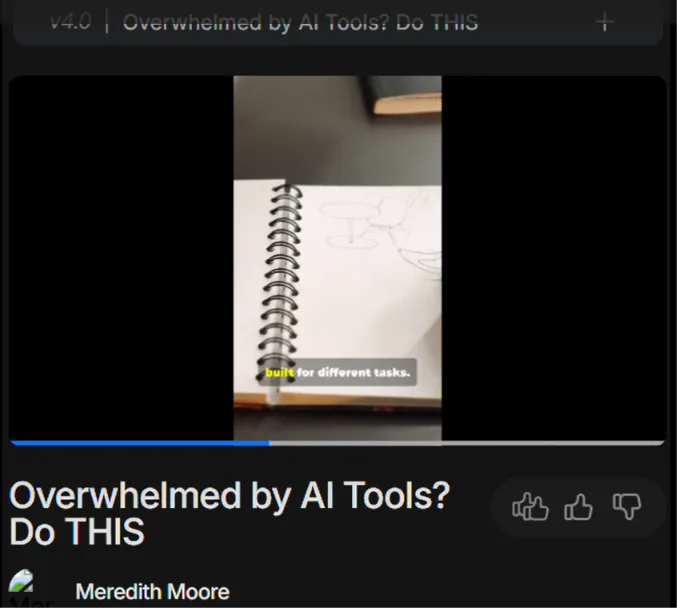
The voiceover was clear and easy to understand. It didn’t sound terrible or robotic, but it did sound a little generic. The captions were the bigger issue.
They matched the voiceover, but they were too small and blurry at first. For Reels, Shorts, TikToks, or Pinterest-style videos, people need to read captions fast. They are not going to squint.
My score: 3 out of 5
Useful, but I would check and edit before publishing.
What Worked
- Captions were added automatically.
- Voiceover was added automatically.
- The voice was clear.
- Captions matched the audio.
What Needed Fixing
- Captions needed to be larger.
- Captions needed to be clearer.
- Voiceover needed more personality.
Test 3: Editing With InVideo Magic Box
This was one of the better parts of the test. Instead of digging through a complicated editing timeline, I typed commands into Magic Box.
Magic Box Edits I Tested
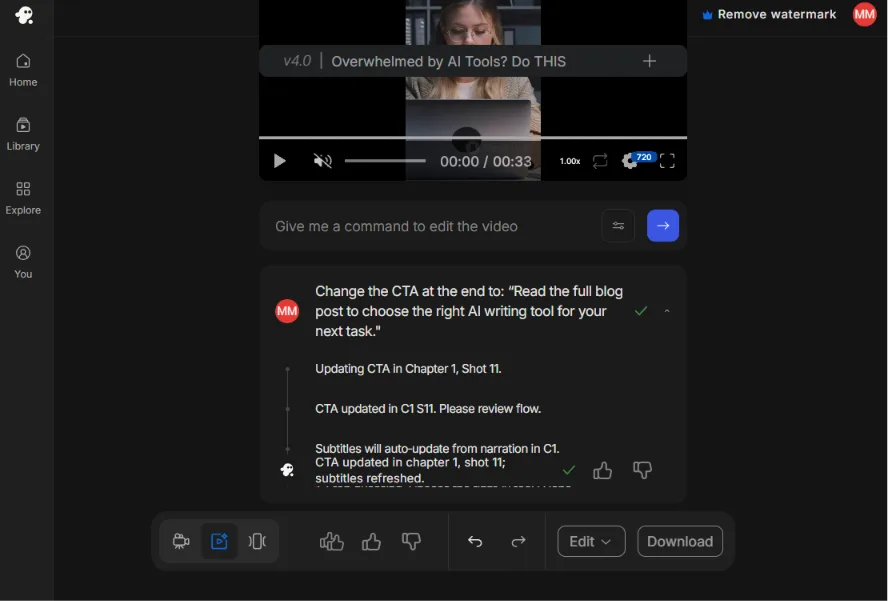
- “Change the CTA at the end to: Read the full blog post to choose the right AI writing tool for your next task.”
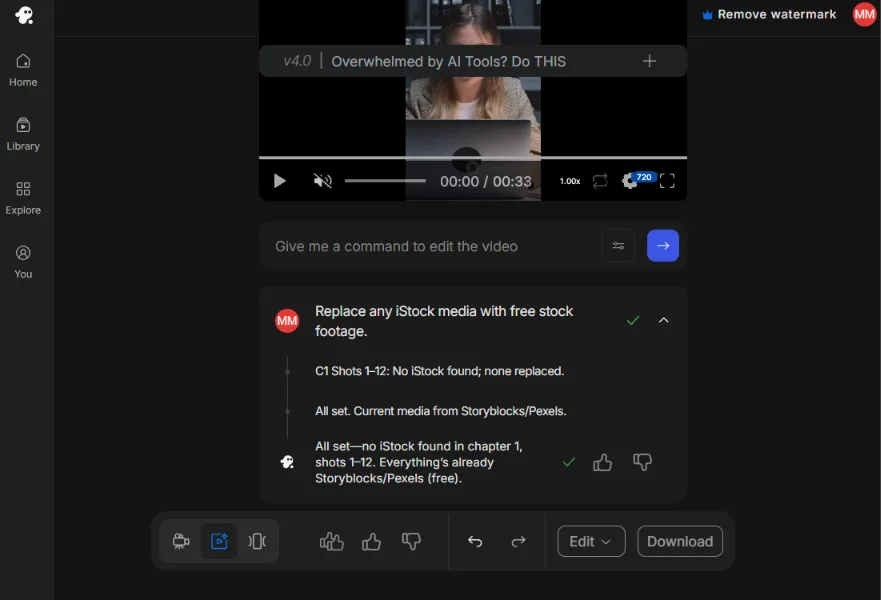
- “Replace any iStock media with free stock footage.”
- “Replace the weakest stock clip with a clip of a laptop, notebook, or content planning.”
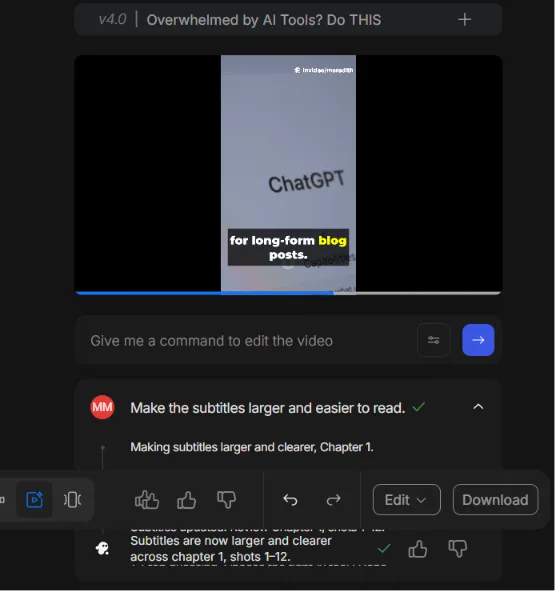
- “Make the subtitles larger and easier to read.”
- “Make the background music softer.”
The CTA edit was easy. InVideo followed the command and updated the ending.
The iStock check was useful too. During my test, I asked InVideo to replace any iStock media, and it said none was being used in that video. The media in my project was already coming from other stock sources.
InVideo currently uses stock libraries that can include iStock, Storyblocks, Shutterstock, Pexels, and Pixabay, depending on your plan and project.
The subtitle fix worked well. Before the edit, the captions were small and blurry. After asking InVideo to make them larger, they were much easier to read.
The weakest clip replacement was less obvious. InVideo said it replaced the clip, but the change was subtle. I probably would not have noticed it if the tool had not told me.
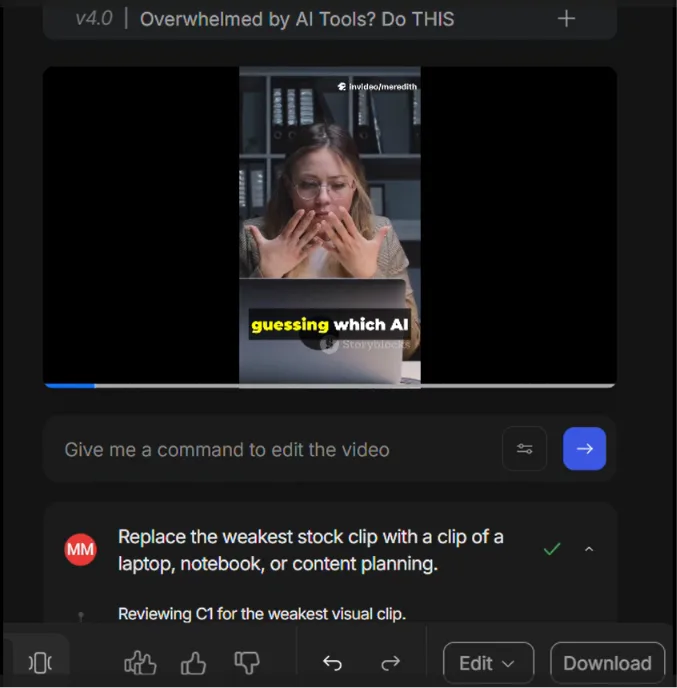
I also asked InVideo to make the background music softer. It did make the change, but the music still felt a little generic to me.
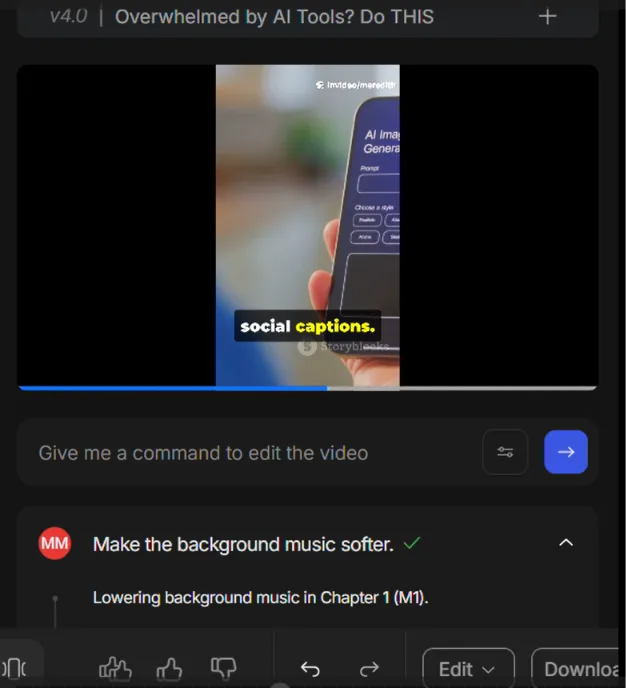
My score: 4 out of 5 for ease
My score: 3 out of 5 for visible improvement on some edits
Magic Box was beginner-friendly, but I would still review every change.
What Worked
- CTA edit was easy.
- Subtitle enlargement worked well.
- iStock check was helpful.
- Magic Box understood simple commands.
What Needed Fixing
- Some edits were hard to notice.
- Softer music still sounded generic.
- It was not always clear whether edits used credits.
Test 4: InVideo AI Free Plan and Export Limits
This is where the free plan gets a little tricky. Since I had used InVideo before, my account did not start with a completely fresh set of unused credits.
So during my original June 2026 test, I paid attention to what mattered most to me: credits, export settings, watermarks, resolution, and whether I could actually download the video.
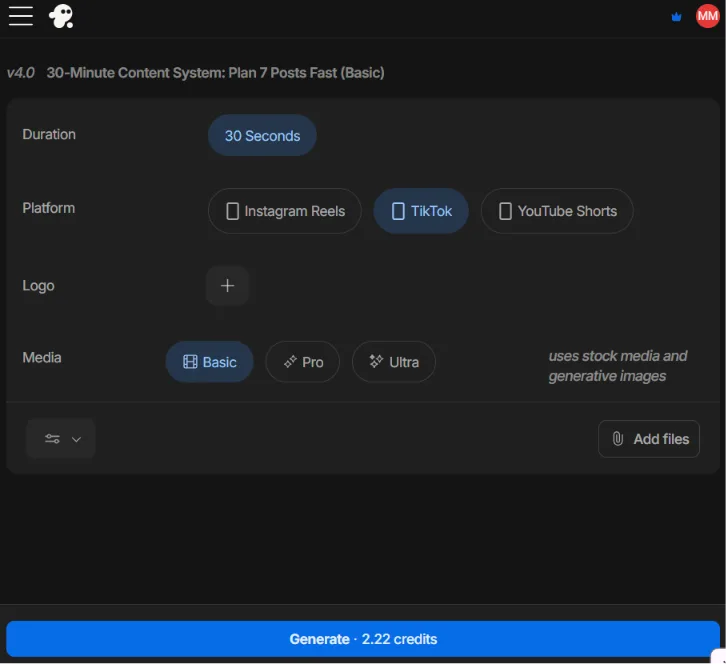
At first, I tried the cleaner download settings: no stock watermarks, no InVideo branding, and 1080p. In my account at the time, those settings required an upgrade.
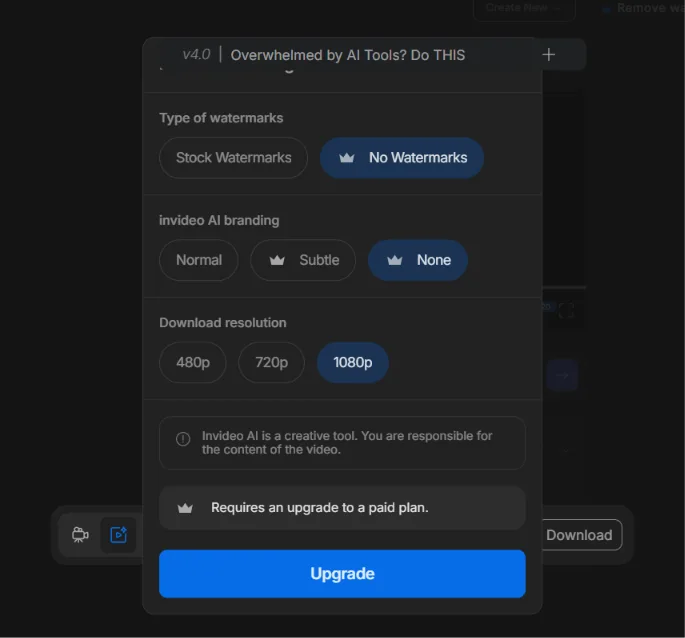
During my June 2026 test, the cleaner 1080p export settings I selected required an upgrade.
Then I tried the more free-friendly settings available to me: stock watermarks, normal InVideo AI branding, and 480p. Those settings allowed me to continue and export the video.
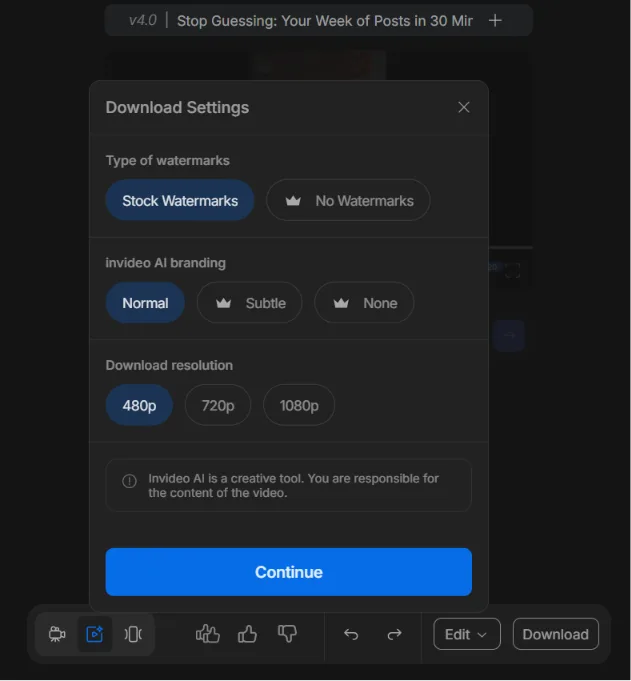
The free-friendly export settings available in my account during testing included watermarks, InVideo branding, and a lower-resolution export.
That showed me the free plan was still useful for testing the workflow. I could create a video, make edits, and actually export something without paying.
What has changed since my test: InVideo now describes its free option as a limited-credit plan that you can use without entering a credit card. Free credits reset weekly on Monday at 12 a.m. UTC. Because the plans and export options can change, I would not use the 480p setting from my screenshot as a rule for what every free account gets today.
Paid plans currently provide larger credit allowances and watermark-free exports, so I still think the free plan makes the most sense for trying InVideo before deciding whether you will use it enough to pay for it.
If you do decide to upgrade, InVideo offers several paid plans with different credit amounts and feature limits. The screenshot below shows the pricing page I was shown during my original test.
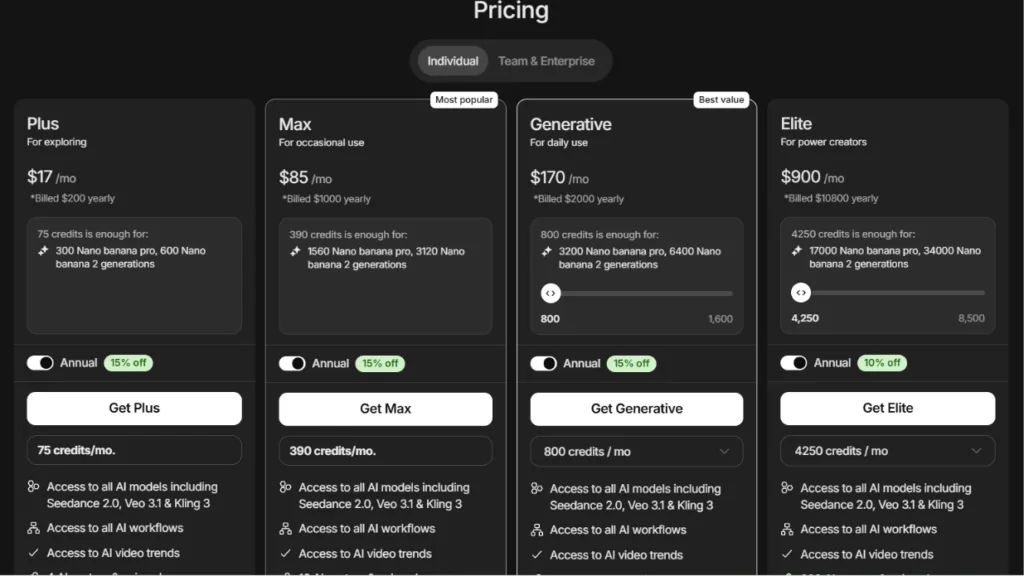
InVideo now uses credits across many of its AI features, and different generative models can use different amounts. That is another reason I would check the current pricing and plan details before subscribing instead of relying on an older screenshot.
One note: Since I had used InVideo before, my available credits and usage did not match a completely new account. That is why I looked at both the fresh-account information and what actually happened in my testing account before judging the free plan.
My score: 3 out of 5 for the free plan
Good for testing, but limited if you want to use InVideo regularly for polished business videos.
What Worked
- I could create videos before paying.
- I could edit videos before paying.
- I could test the workflow.
- I was able to export a video using the free-friendly settings available during my test
What Was Limited in My Test
- Watermark-free export required upgrading.
- Removing InVideo branding required upgrading.
- Higher-quality export settings were restricted in my account.
- The free plan worked better for testing than for polished publishing.
If you want to test InVideo AI yourself, start with the free workflow first. Try one short video, check the captions and export settings, then decide if upgrading makes sense.
Test 5: InVideo AI Lead Magnet Promo Video
This was my best result.
I asked InVideo to create a short promo video for my free 30-Minute Content System.
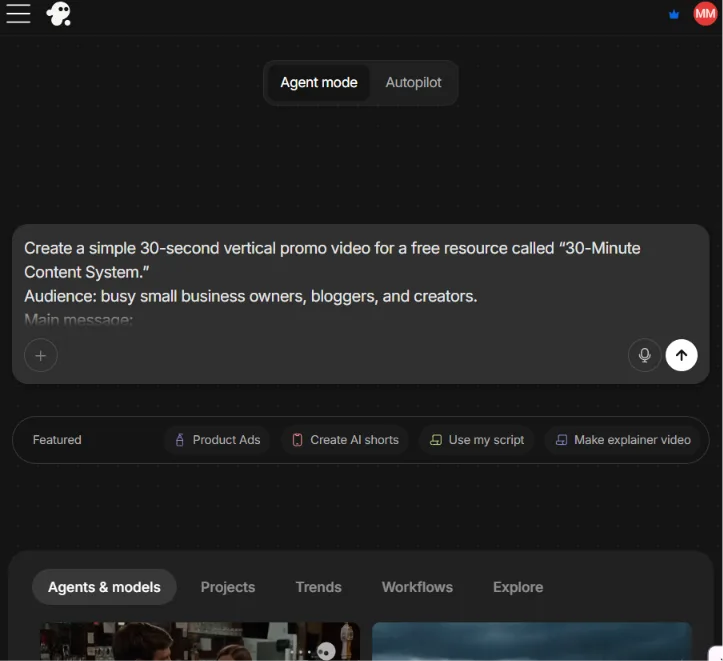
Prompt I Used
Create a simple 30-second vertical promo video for a free resource called “30-Minute Content System.” Audience: busy small business owners, bloggers, and creators. The message should be: need content for the week, but don’t want to start from scratch? This free system helps you plan, write, design, and schedule 7 social posts using free tools.
This lead magnet helps busy small business owners plan, write, design, and schedule seven social posts using free tools. It connects to the same idea I talk about in my content creation system for beginners post. Having a simple workflow so that every post does not start from zero.
I was happy to see that this video came out stronger than the first one, which was weird. You never know what you’re going to get. Sometimes it can depend on your prompt.
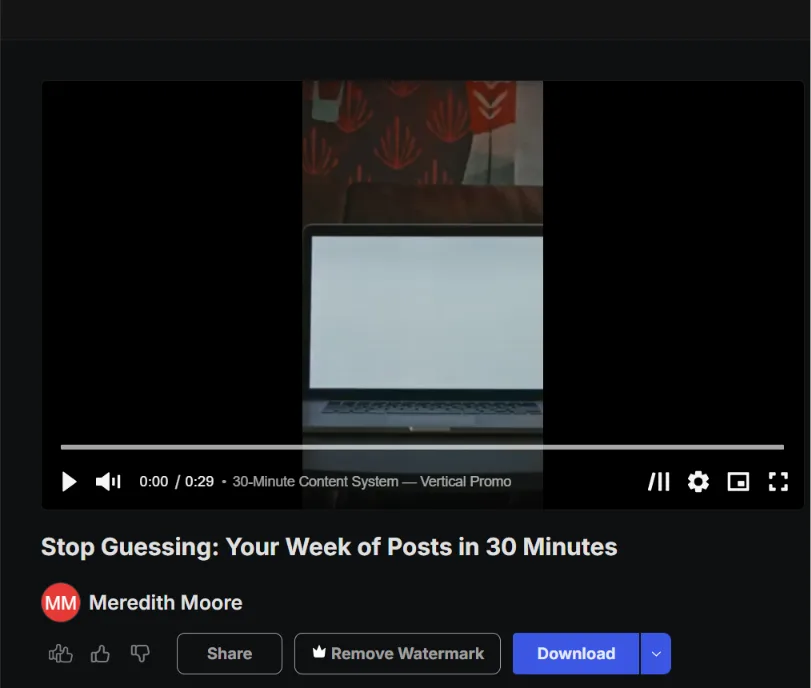
The message was clearer, and the visuals matched the content planning better. Also, the captions came out bigger and clearer this time, and the hook was stronger.
“Stop Guessing: Your Week of Posts in 30 Minutes”
Video Example: InVideo AI Lead Magnet Promo Draft
That felt much more useful than the first video, but it still needed checking.
The video looked a little stock/template-based, and I could see watermarks in the preview during my test. I also noticed the voiceover said “3 0 minutes” instead of “30 minutes.”
That is exactly why I would not publish an AI video without watching it first.
My score: 4 out of 5 as a first draft
It was the strongest video from the test, but I would still edit it before using it.
What Worked
- Hook was stronger.
- The message matched the freebie.
- Visuals fit the content-planning topic.
- It gave me a better starting draft than Test 1.
What Needed Fixing
- It still looked a little template-based.
- Watermarks were visible in the preview.
- CTA and branding still need cleanup.
- Voiceover had the “3 0 minutes” glitch.
Is the InVideo AI Free Plan Enough?
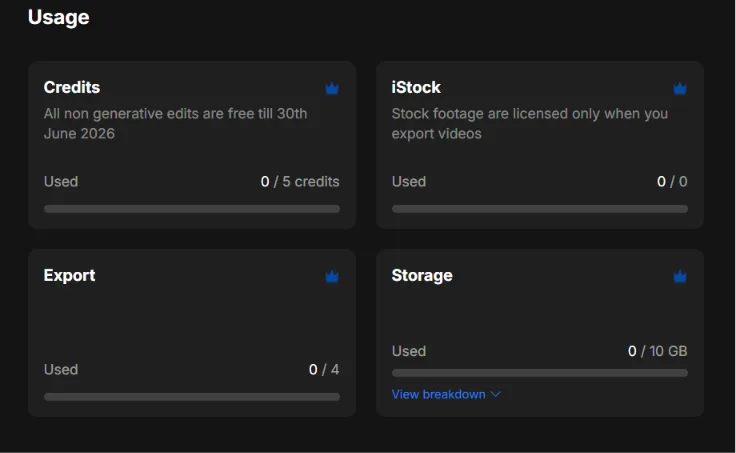
For testing, yes. InVideo’s current free plan gives you a limited number of credits to explore the platform without entering a credit card, and those free credits reset weekly.
That makes it useful for getting a sense of how the workflow feels before paying. If you plan to create videos regularly or want access to more credits and watermark-free exports, you will probably need to look at one of the paid plans.
My Honest Take
Use the free plan to test the workflow. Upgrade only if the tool saves you enough time to justify the cost.
Is InVideo AI Worth It for Beginners?
InVideo AI might be worth it if you need short marketing video drafts and don’t want to start from scratch.
It is useful for:
- Blog promo videos
- Lead magnet promo videos
- Short social videos
- Captions and voiceover
- Fast first drafts
- Simple prompt-based edits
It’s probably not the right fit if you expect a finished, polished video with no review or editing from you. InVideo saved time as a starting point. It did not remove the need to review and polish the video. That is the real answer.
Is InVideo AI Legit?
Yes, based on my test, InVideo AI is a real working tool. It created videos from prompts, added captions and voiceover, and followed simple editing commands, but “legit” is not the biggest question for beginners.
The better question is whether it creates videos you would actually use. For me, the answer was yes as a first draft tool, but not as a one-click publish tool.
How InVideo Compares to Other Tools
I would not use InVideo for the same job as Canva or CapCut. Canva is better for static graphics, simple branded designs, lead magnet covers, Pinterest pins, and social posts.
I also compared Canva AI and ChatGPT for content creation, if you want help deciding which tool should come first in your workflow.
CapCut may be better if you want more hands-on control over a video you already have.
InVideo is better when you want the tool to create a video draft from a prompt. It can pull together clips, captions, voiceover, music, and a basic video flow without starting from a blank timeline.
So the better question is not “Which tool is best?” The better question is: what job do you need the tool to do?
If you need a polished graphic, I would start with Canva. You might already have video clips and want to edit them yourself. In that case, I would look at CapCut. If you need a short marketing video draft fast and don’t want to record from scratch, InVideo makes more sense.
Final Verdict: Would I Recommend InVideo AI?
After doing this InVideo AI review for beginners, my answer is yes, with the right expectations. I would not recommend it if you expect the first version to be perfect.
The lead magnet promo video was the strongest result. Magic Box editing was also helpful. The weaker parts in my original test were the generic stock feel, caption cleanup, the export limitations I encountered on the free plan, and the voiceover glitch in Test 5.
My Simple Recommendation
Use InVideo AI when you need a video draft fast. Then check the captions, listen to the voiceover, fix the CTA, and clean up anything that feels too generic. Do not skip the review step.
If you’re still trying to decide which AI tool belongs in your workflow, my best AI tools for small business page is a good place to compare options.
If you need short video drafts but don’t want to record or edit from scratch, you can try InVideo AI and see if it fits your workflow.
FAQ: InVideo AI Review for Beginners
Is InVideo AI free?
Yes. InVideo AI currently has a free plan that you can use without entering a credit card. It gives you limited credits to explore the platform, and the free quota resets every Monday at 12 a.m. UTC.
My original June test used an earlier version of the free-plan workflow, so I recommend checking the current limits in your own account before deciding whether it is enough for you.
Can beginners use InVideo AI?
Yes. The prompt-to-video workflow was beginner-friendly, and Magic Box made edits easier because I could type what I wanted changed.
Does InVideo AI have a watermark?
Free and paid export options differ. InVideo says paid plans support watermark-free downloads, while watermarks may still appear on the preview screen before export. During my original free-plan test, the export settings available to me included watermarks and InVideo branding.
Is InVideo AI worth it?
It may be worth it if you need fast video drafts and are willing to edit them. It may not be worth it if you need free, watermark-free, finished videos with no cleanup.
What can you make with InVideo AI?
You can create marketing videos, blog and lead-magnet promos, social videos, Shorts, product and UGC-style ads, explainers, script-based videos, and more. InVideo now also includes AI agents and generative models for more advanced image and video creation.
Tools You May Want to Explore Along With InVideo AI
InVideo AI
It can turn a prompt into a video with scripts, visuals, captions, voiceover, and music, and it now includes Autopilot, AI agents, workflows, and generative-model options.
Best for: creating a first-draft marketing video without recording from scratch. Try InVideo AI here
FlexClip
FlexClip is another video creation and editing tool that may be worth looking at if you want a different video maker to compare with InVideo.
Best for: simple video editing, templates, and quick video creation. Try FlexClip here
Predis.ai
Predis.ai can help create and schedule social media content, so it may be useful after you know what content or video topic you want to share.
Best for: turning content ideas into social posts and planning social content faster. Try Predis.ai here
Want Help Knowing What to Ask AI?
One thing this InVideo AI test made very clear is that using AI can save time, but only when you know what to ask for.
The tool can create videos, add captions and voiceovers, generate visuals, and help with edits, but clear instructions still matter if you want the result to match what you had in mind.
We saw that firsthand in this test when a basic prompt led to a rough starting point that needed improvement.
That’s exactly why having better prompts makes such a difference, and it’s where my free AI Prompt Toolkit can help.
It gives you simple prompts for ideas, outlines, captions, rewrites, messaging, and content planning so you have a clear place to start instead of staring at a blank prompt box.
These prompts will help you quickly explain what you need, and you will get a cleaner first draft for all your content.
You will also get my weekly AI tool reviews, comparisons, and online business tips to help you choose tools more effectively and save time in your business.
Fill out the form below to get the free AI Prompt Toolkit.
We respect your privacy. You can unsubscribe at any time.
Final Note
Thanks for reading. I hope this InVideo AI review helped you see what the tool can actually do for beginners, where the free plan helps, and where it starts to feel limited.
Have you tried using AI to create short videos yet, or is recording and editing still the part that slows you down most? Drop a comment below and let me know. I would love to hear your experience.

If this InVideo AI review helped you decide whether the tool is worth testing, please share it with another business owner, blogger, or creator who needs short videos.



Hi Meredith – I really appreciated this review because it was honest, practical, and based on your actual experience instead of hype. Too many reviews either tell us everything is amazing or everything is terrible, but you took the time to explain where the free plan works well and where it starts to show its limitations. That kind of transparency helps small business operators, like me, make better decisions for their own business.
I also liked that you pointed out there is nothing wrong with starting on the free plan, but you were equally honest that sometimes investing in a paid plan simply makes sense if it saves time and produces better results. That is the reality of running a business. Thank you for taking the time to test it thoroughly and share your experience with the rest of us.
Hey Ernie,
That was one of the main things I wanted to show with this review. A free plan can be a great place to start, but it doesn’t always tell the full story. Sometimes it’s enough for what you need, and sometimes you find out pretty quickly where it slows you down.
I try to look at these tools the way a real small business owner would, not just by what the sales page says. We have to think about money, time, frustration, and whether the tool really makes the job easier.
I’m glad that came through in the review for you, and I appreciate you taking the time to say that.
Hi Meredith,
I have to say that your reviews are something else! You really go in depth with the “how-to” and the “why” of each apps you review. The good, the bad, the ugly is also something that comes to mind.
Even though some of the apps you mention aren’t those I tend to use, you still bring out very valid questions that I should definitely ask myself for the ones I do use; thanks for that!
Keep on doing a great job of reviewing these apps, it’s definitely something everyone working online should be checking out!
Cheers!
Hey Marc!
I always laugh a little at “the good, the bad, and the ugly” because that is pretty much what happens when I start testing these tools. Some parts are great, some make me question my patience, and some make me wonder who approved that button placement. 😄
But that’s exactly why I like walking through the full experience. Even if it’s not a tool someone uses, it can still help them look at their own tools a little differently and ask better questions before wasting time or money.
I really appreciate you reading and leaving such a thoughtful comment. It means a lot!
Hi Meredith – Thank you for making this update. As dig deeper into business, I realized that this is an area that I am lacking. Since my initial response it has been very clear to me that I need to up my game with my videos. Thanks for this post as the motivation is needed!